Create and manage project boxes
In this brief HOW-TO, we will take you through the steps of applying for a Project Box and setting it up so that you can actually work with the files stored
in the Project Box using your private Sciebo account.
Note: Project boxes can only be requested by staff members of the participating universities.
Apply for the project box
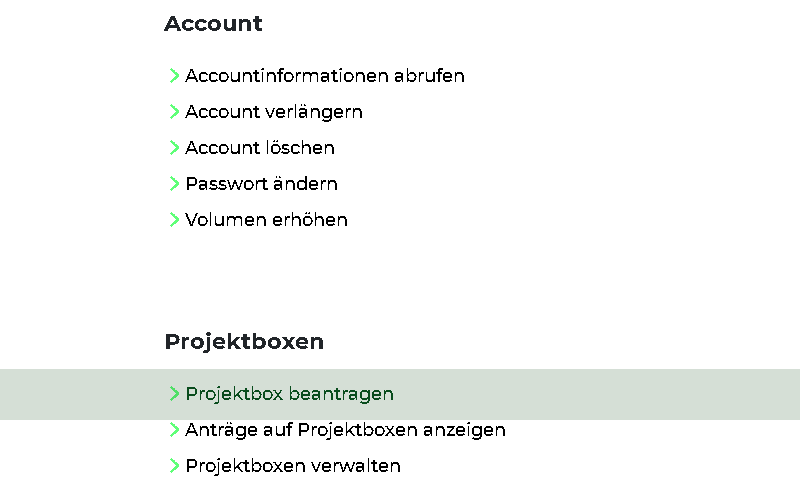
To request a project box, you must first submit the project box application in mysciebo. You will find the relevant field unter the heading Project boxes.
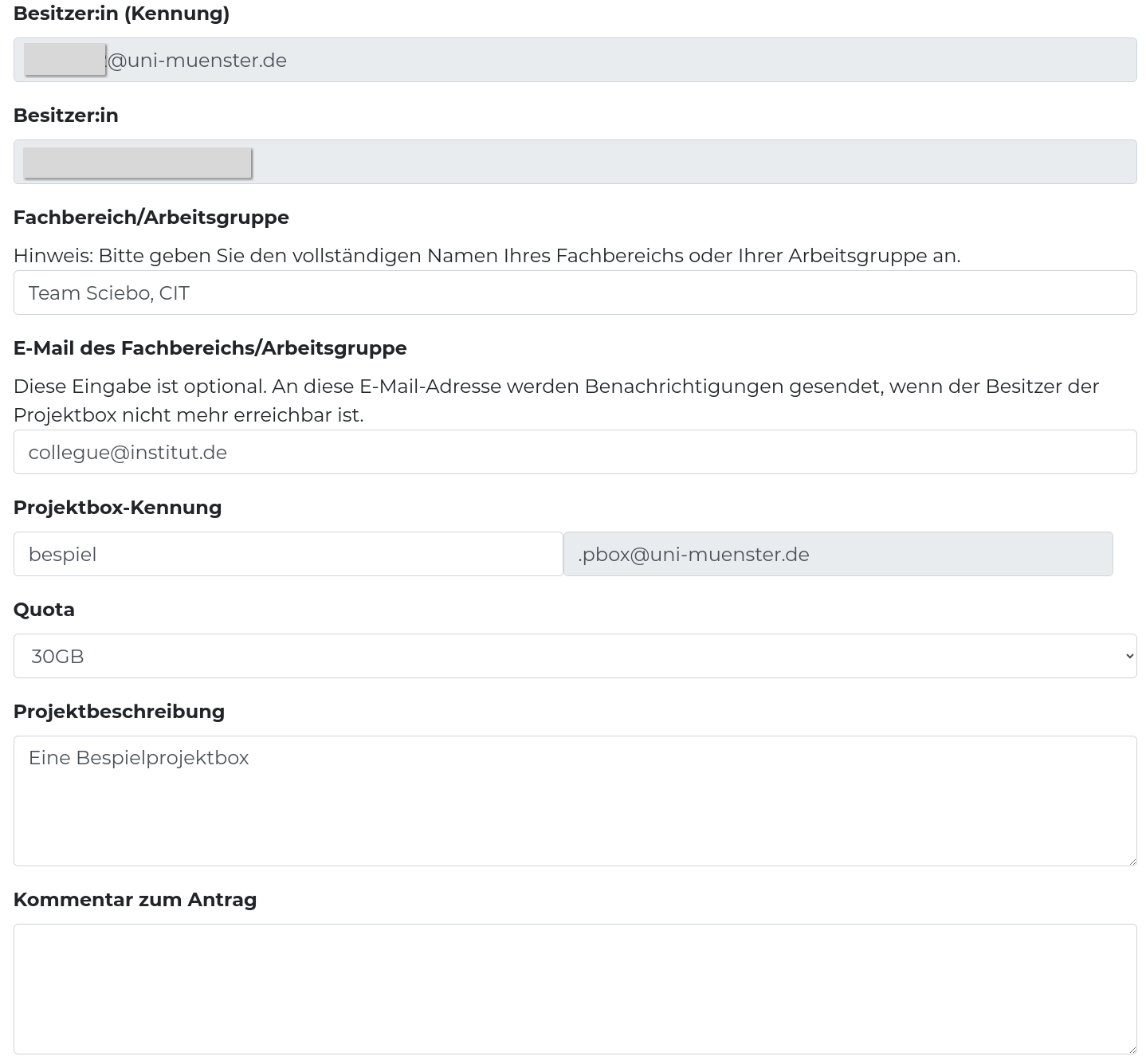
The form for the project box must be completed there; in the ‘Department/Workgroup’ field, please provide as precise a description as possible of the actual working group. Also enter the e-mail address of a person who can be contacted if you are unavailable in the “E-mail of Department/Workgroup” field. As the project box is not personalised, this makes it easier to reassign the data when you leave the university and the project box becomes orphaned.
Set up a password
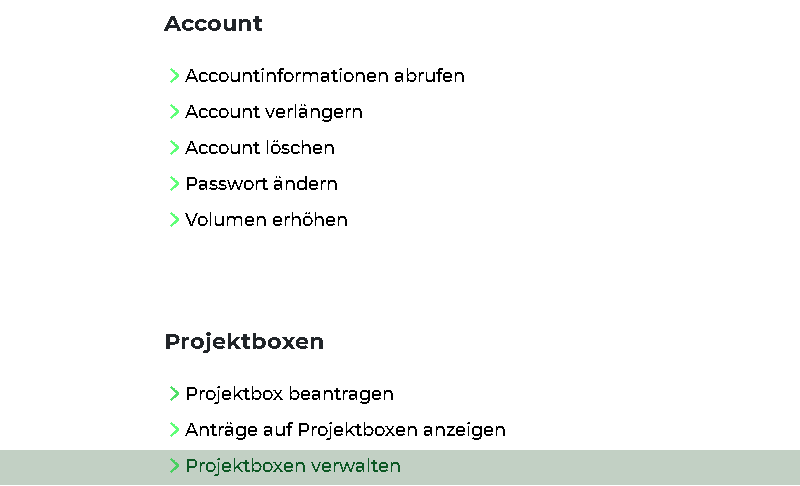
Once this request has been accepted, you can access the project box management menu in mysciebo by clicking on ‘Manage project boxes’:
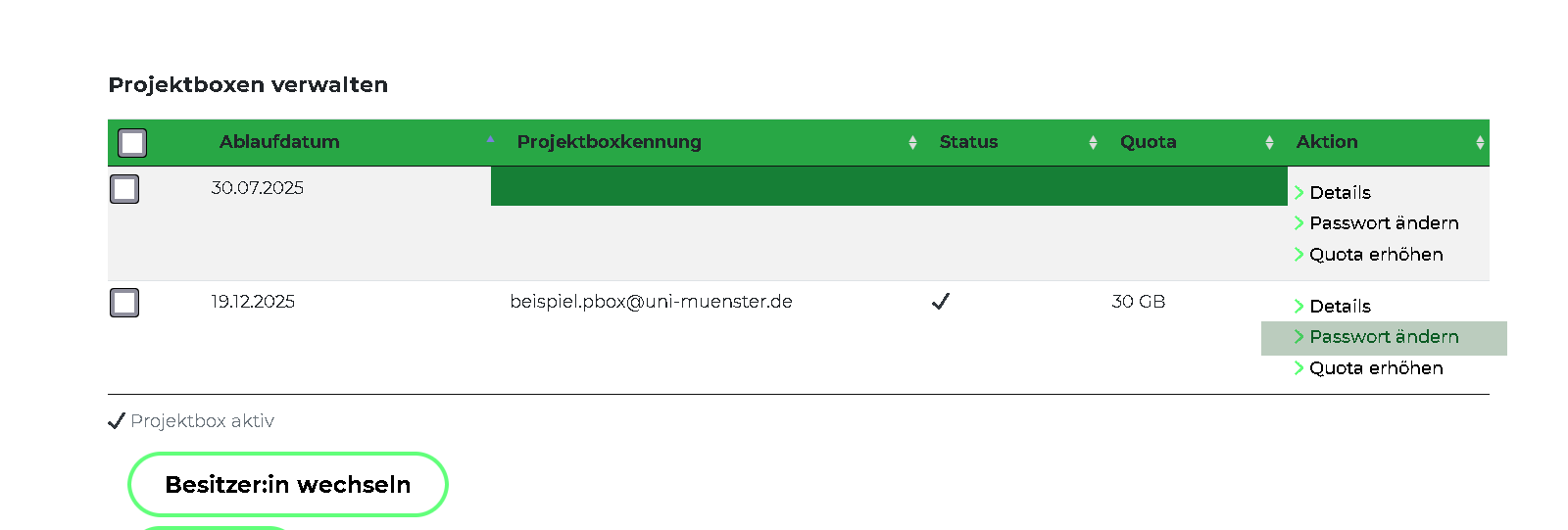
Here you need to set a password for the project box.
Log in to the project box and set up shares
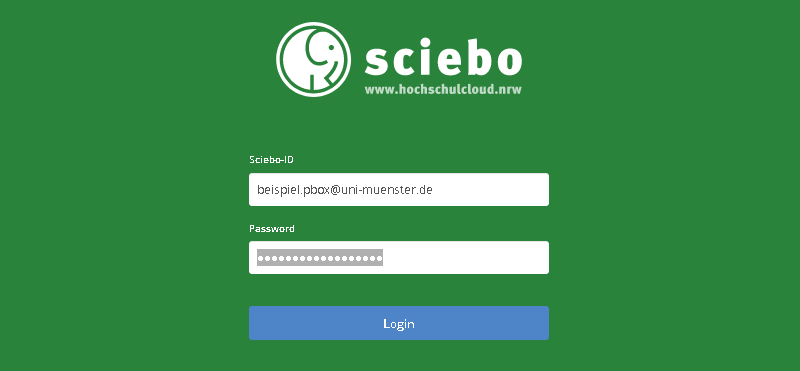
Now you can log in to your own Sciebo instance with this project box. For me, this is
https://uni-muenster.sciebo.de. Please note
the .pbox@institute at the end of the project box name, for example .pbox@uni-muenster.de for the University of Münster.
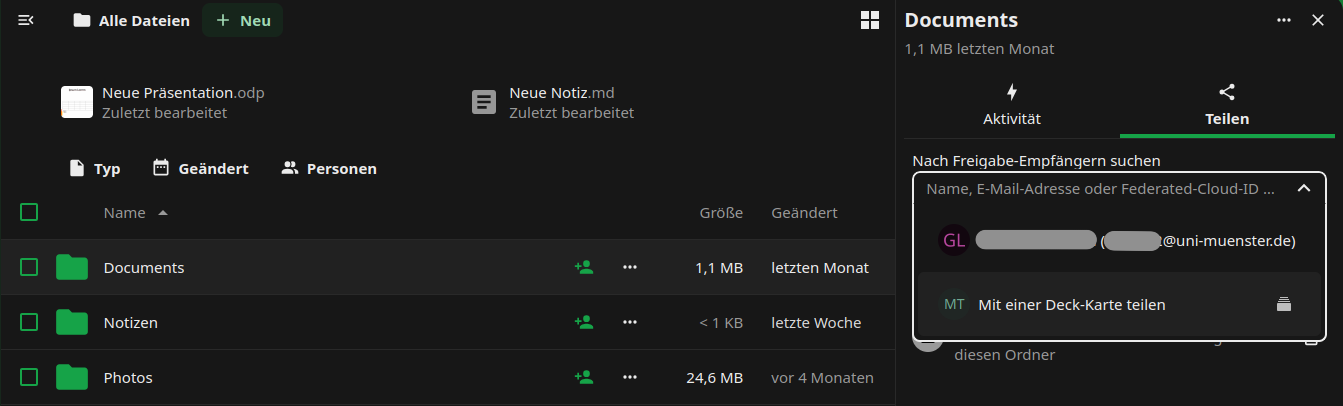
You can now set up a folder structure in the project box; it usually suffices to just have a folder, which you share with your personal Sciebo account:
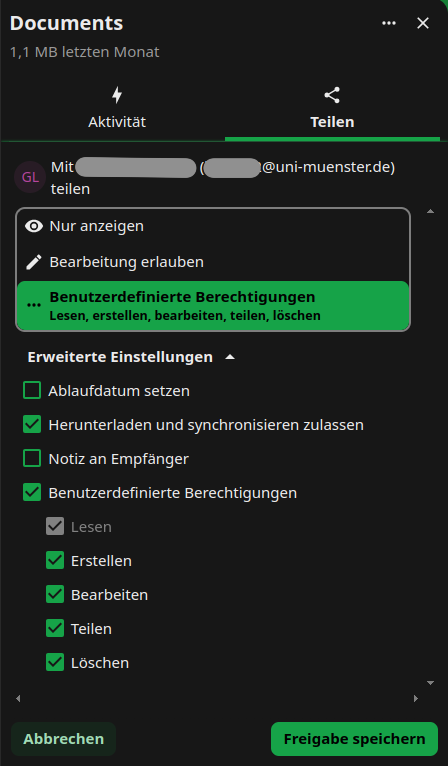
You can set the permissions by clicking on the cogwheel next to the share. By default, everything is allowed; this makes sense for your personal account, as it enables you to share this project box folder with other project partners without having to log into the project box again.
Transferring a Project Box
If the administrator of a project box leaves, the box should be transferred to a successor preferably beforehand. This is especially important if this person is leaving
the institution entirely and cannot renew their Sciebo account. As soon as the administrator’s account is blocked, the project box will also be blocked and deleted after
some time. This risks data loss! Please also note that the term of a project box is 24 months, unlike regular accounts. This means that a box can be deleted well after
the administrator leaves, practically when you least expect it.
The box can also be transferred using the Manage Project Boxes function. Employees can only transfer the box within their own institution. Transferring the management
of a box to an administrator in another institution is reserved for system administrators. The contents of the box remain with the university where the box was set up. This
has the advantage that the data does not need to be copied and the permissions do not need to be recreated.