Share files and folders
Learn how to share files using sciebo client.
Sharing with Other Users
- Open your local sciebo folder.
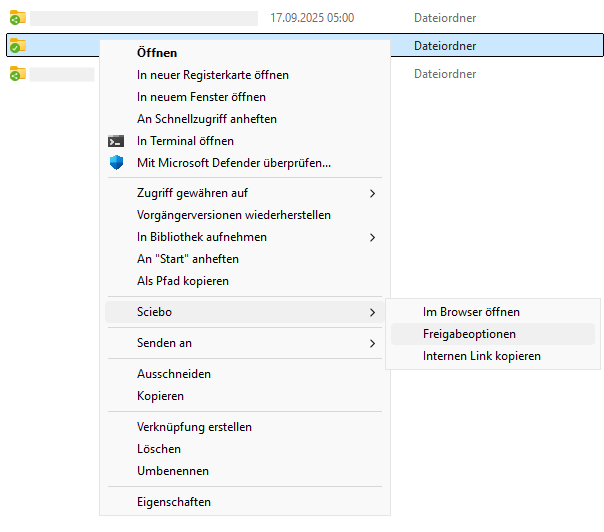
- Open the context menu for the file or folder you want to share. Select “sciebo” and then “Share options”.
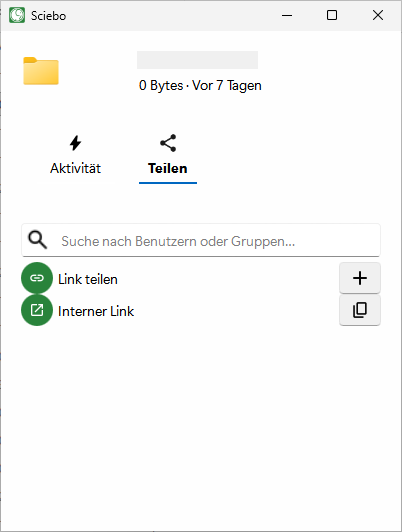
- A new window opens. In the field “Search for users or groups”, enter the name of the desired user according to the scheme “last name, first name”.
- Select the person from the list.
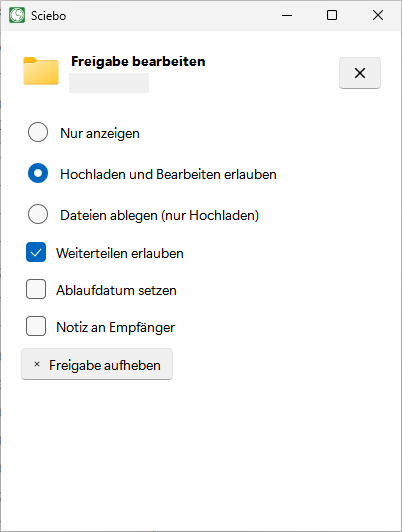
- Determine which rights the person receives by clicking on […] near person/group name and setting or removing the corresponding ticks.
- Close the menu.
You can check at any time with which persons and groups a file or folder has been shared by calling up the share menu again. There you will find a corresponding list where you can manage editing rights and delete shares.
Sharing by Link
- Open your local sciebo folder.
- Open the context menu for the file or folder you want to share. Select “sciebo” and then “Share options”.
- The share menu opens in a new window. Click the plus sign near “Share Link”.
- Decide which rights people who access the file or folder via the link will have by clicking on […] near “Share Link” and setting or removing the corresponding ticks. The following options are available:
- View only
- Allow upload and editing
- File drop (Upload only)
- Hide download
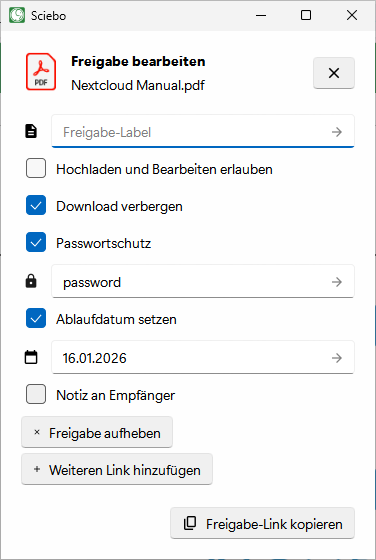
- Optional: Set a password to protect your data from unauthorised access.
- Optional: Set an expiration date to protect your data from unauthorised access.
- Optional: Give the link a different name. By default, the new link is called “Public Link”.
- The options are saved automatically. As you are done, close the menu.
- Click on the copy sign next to the new link to copy it to the clipboard and send it by e-mail, for example.
- Close the menu.
You can check at any time whether a file or folder has been shared by link by calling up the share menu again. There you will find a corresponding list where you can manage and delete associated links.