Share files & folders
Sharing with Other Users
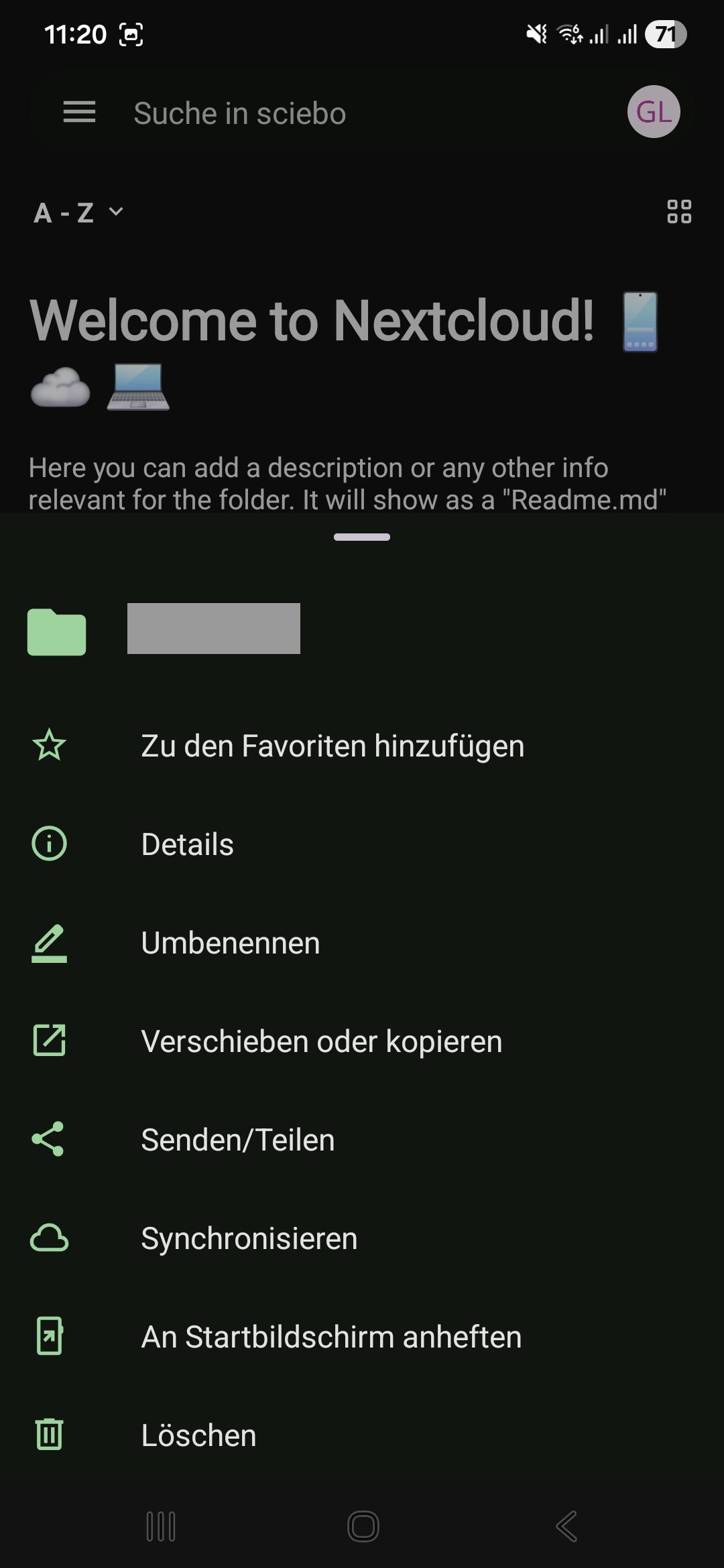
- Tap the three dots next to the file or folder to open the context menu.
- Tap the “Send/Share” menu entry.
- Tap the “Share” button.
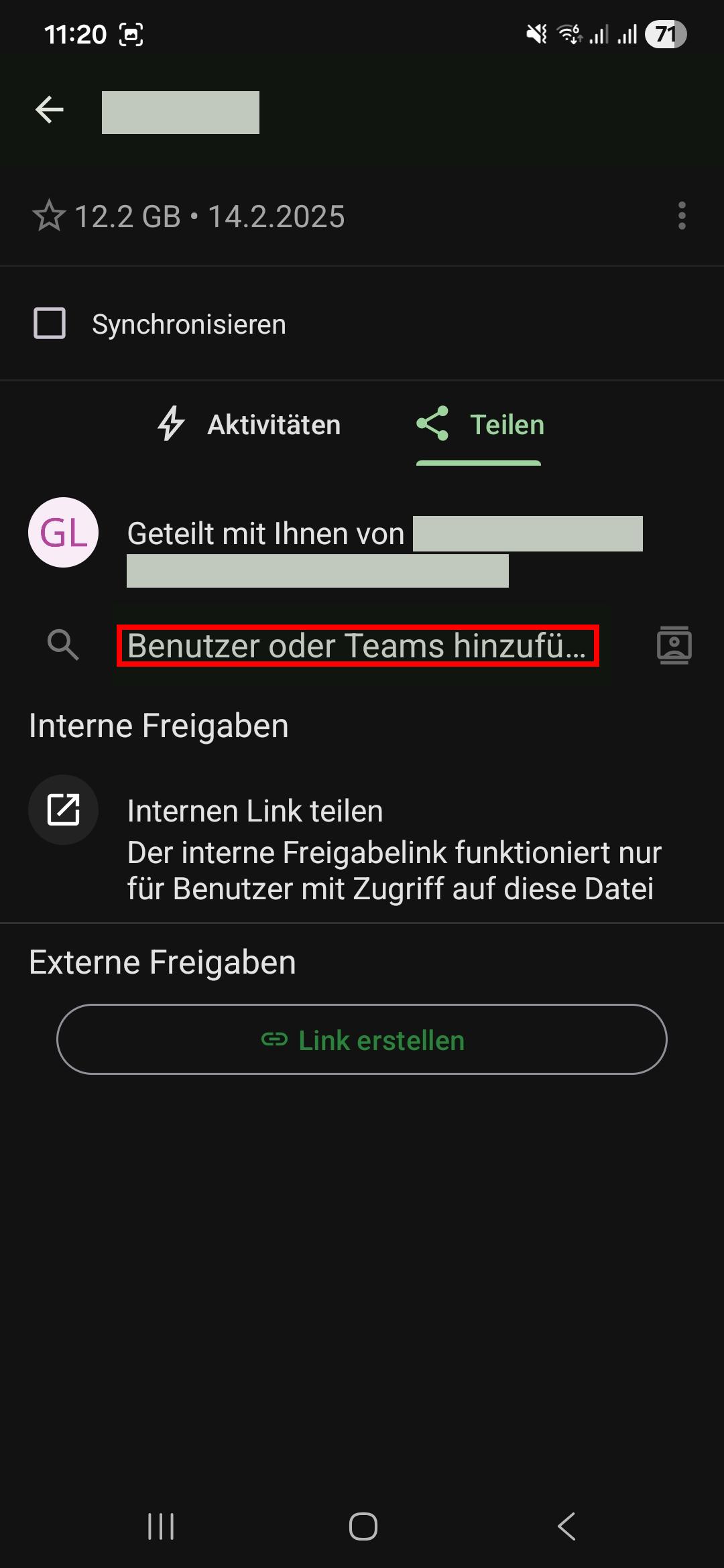
- Enter the name of the desired user in the format “Last Name, First Name” into the “Add user or teams” field.
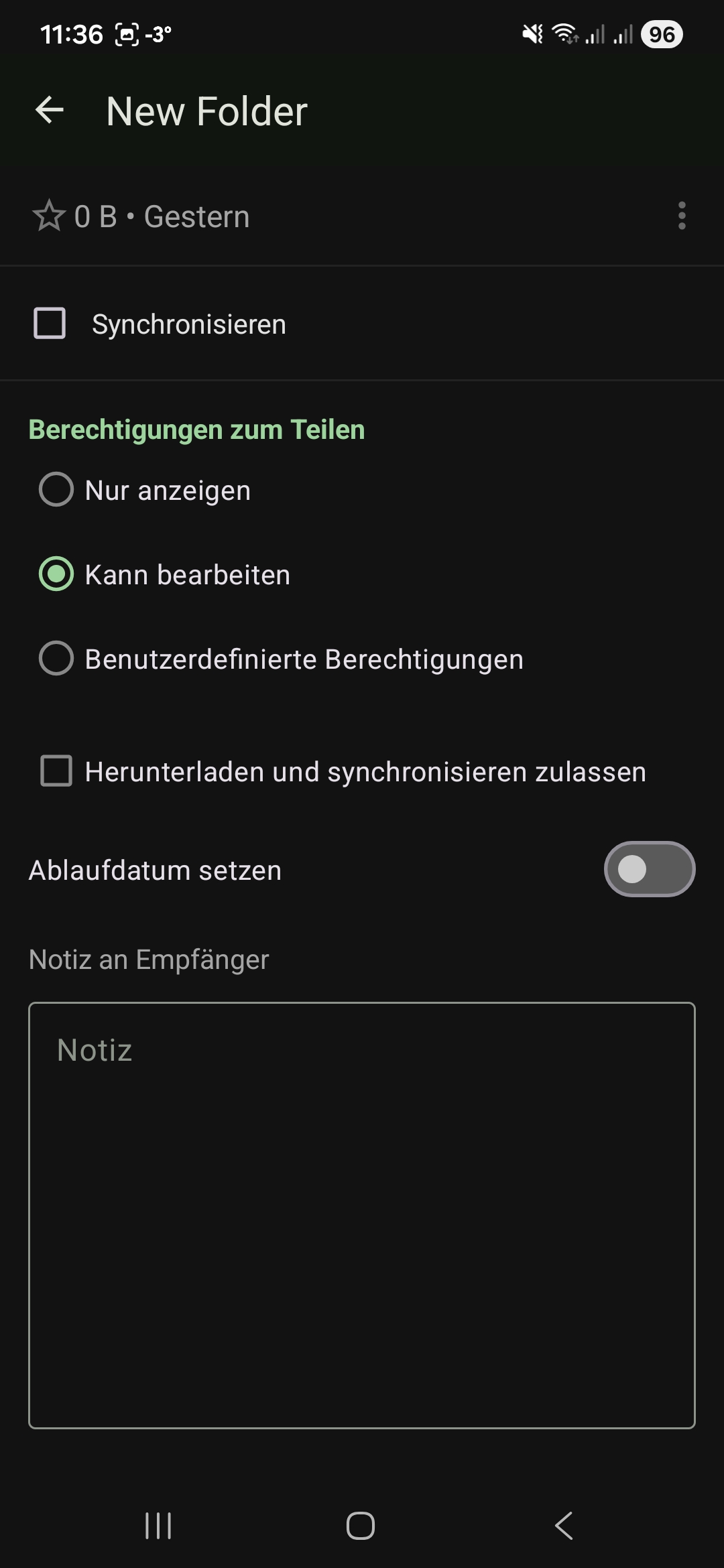
- Set the person’s editing rights. Adjust the rights as needed. Click “Next”.
- Close the sharing menu by tapping the arrow in the upper menu bar.
You can see which people and groups a file or folder has been shared with at any time by calling up the sharing menu again. There you will find a corresponding list in which you can also manage editing rights and delete shares.
Sharing via Link
- Tap the three dots next to the file or folder to open the context menu.
- Tap the “Send/Share” menu entry.
- Tap the “Share” button.
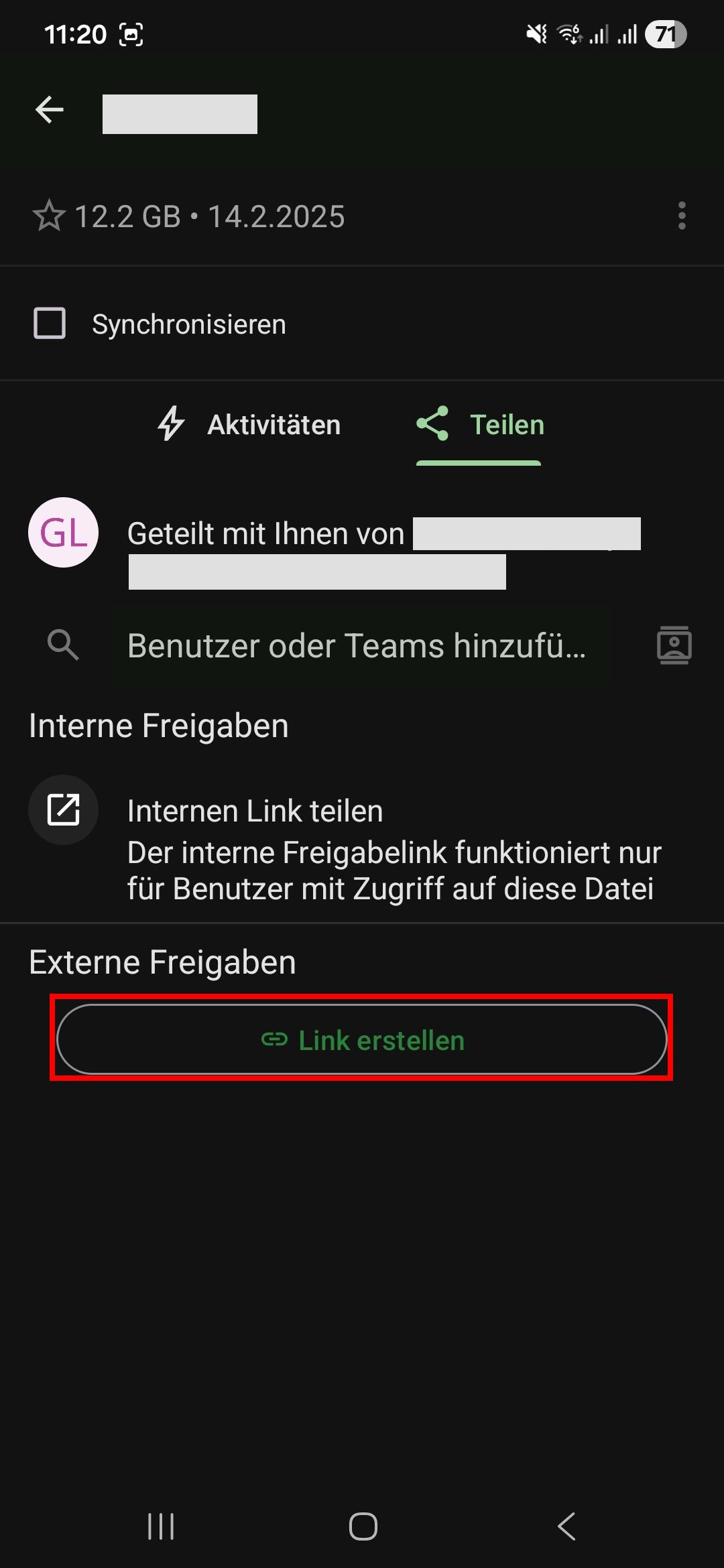
- Tap the “Create link” button. A link will be created.
- Adjust the editing rights by tapping the three-dot icon next to the link and selecting “Settings”.
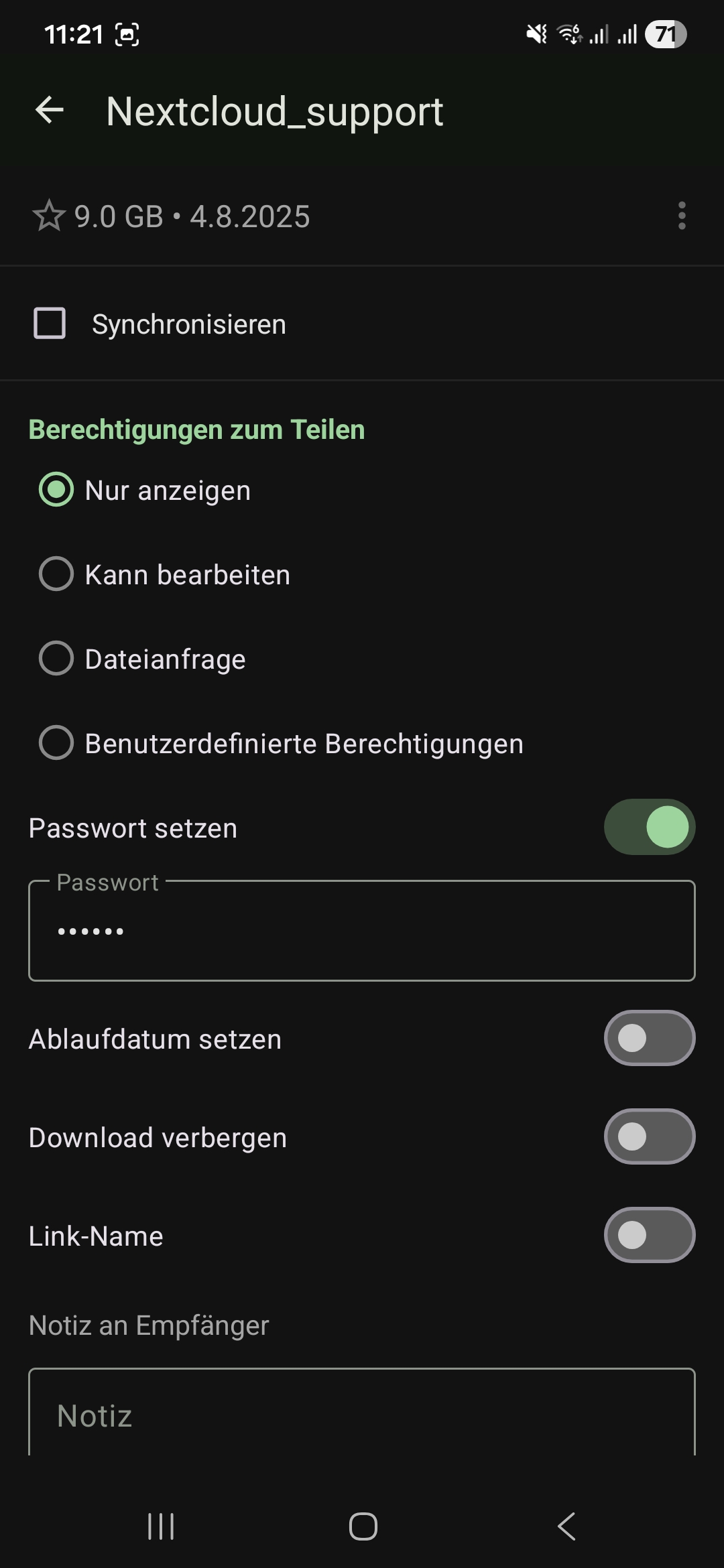
- Optional: Change the name of the link.
- Optional: Set a password to protect your data from unauthorized access.
- Optional: Set an expiration date to protect your data from unauthorized access.
- Tap “Share and copy link”.
- Close the sharing menu by tapping the arrow in the upper menu bar.