Delete and recover files & folders
Deleting Files & Folders Locally
- Tap the three dots next to the file or folder to open the context menu.
- Select the “Delete” option.
- Click the “Locally only” button to delete the file or folder from your phone. The file or folder will now only be deleted locally and will not be removed from the sciebo server.
Deleting Files & Folders
- Tap the three dots next to the file or folder to open the context menu.
- Select the “Delete” option.
- Click the “Delete” button to delete the file or folder from your sciebo account. The file or folder will now be moved to the trash.
Restoring Files & Folders
Restoring individual files/folders
- Click on the three lines at the top left.
- Select the “Deleted files” option from the menu.
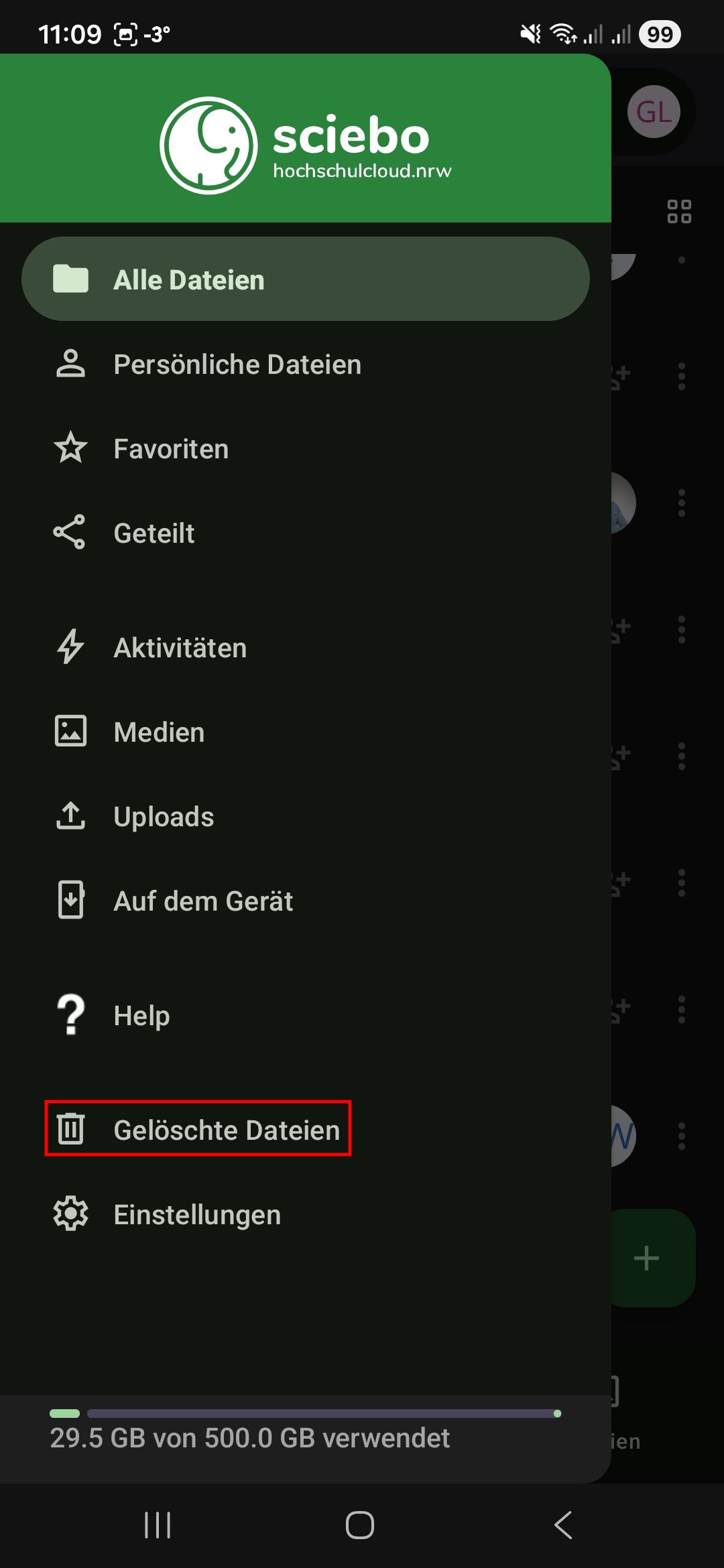
- Click the “Restore” icon next to the file or folder you want to restore.
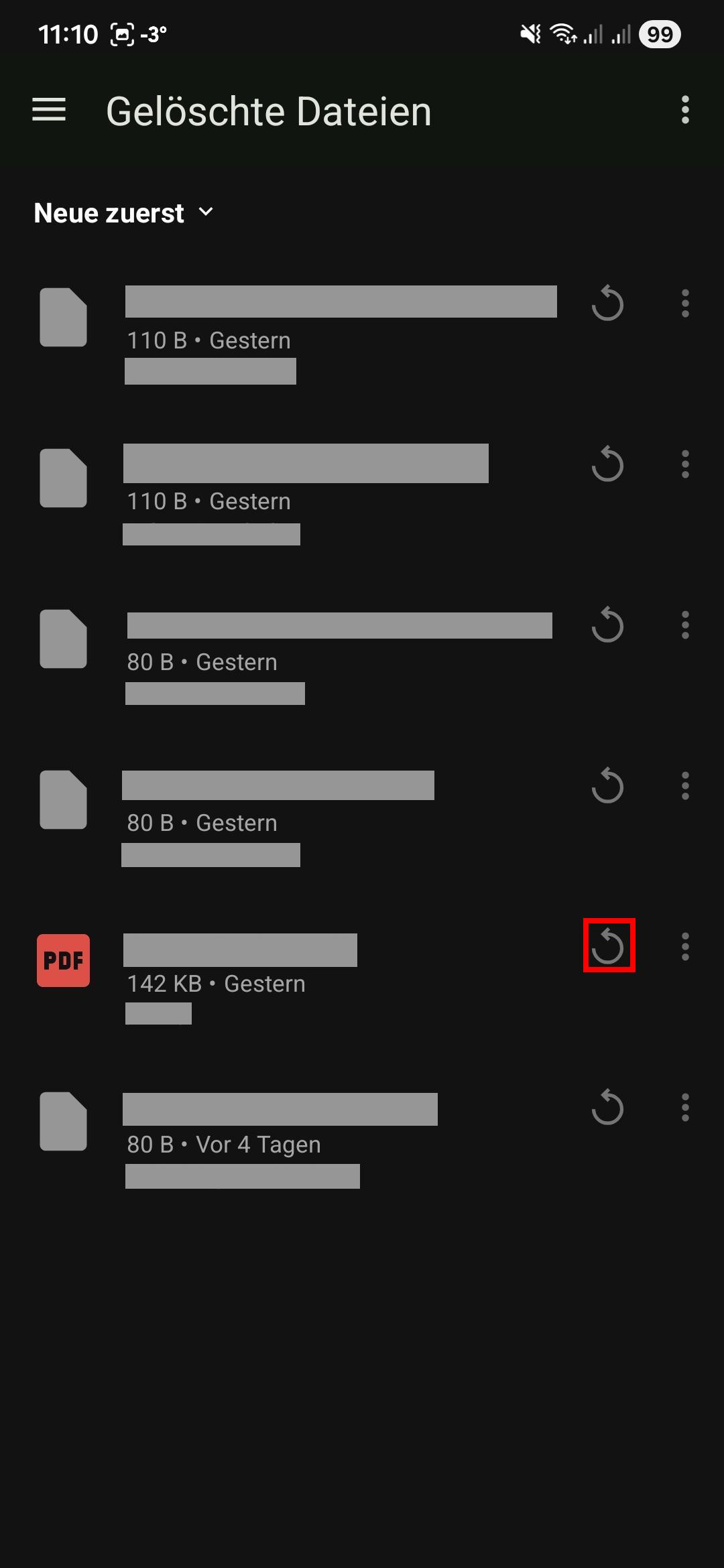
- The file or folder will be restored to the location where it was last saved.