Polls
Create and manage polls.
Hinweis
Currently, surveys can only be shared with users from other universities or guests via a public link.Create a poll
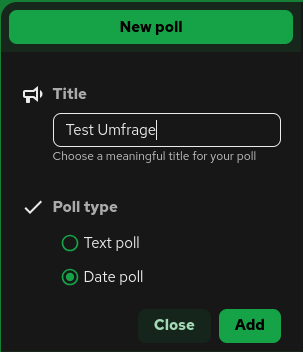
- Click on “New poll.”
- Enter a title for the poll and select a poll type (text poll/date poll).
- Click on “Add.”
- Click on “Options” in the menu on the right to add options for the poll.
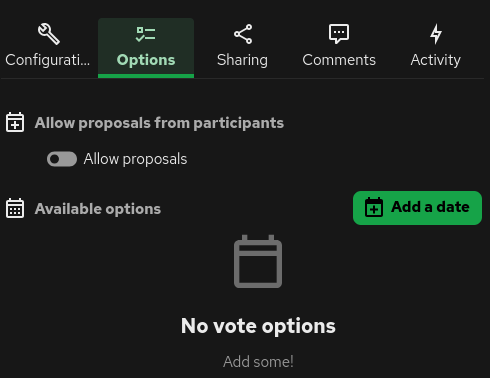
a. In the case of a date poll, there is an “Add date” button; clicking on it opens a window.
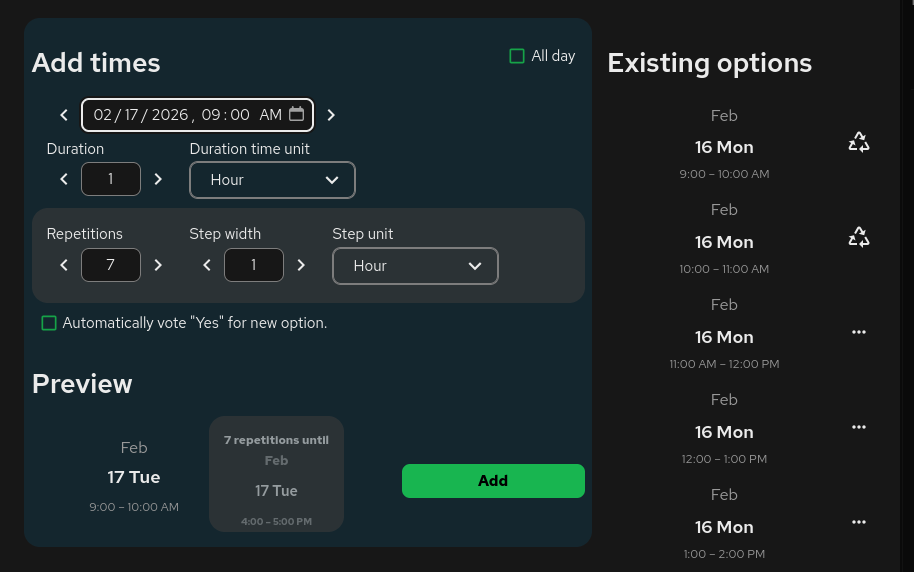
– Select the times you want to add.
- The number of repetitions determines the number of options to choose from.
- The increment defines the time between the start of each individual date.
b. In the case of a text poll, you can type the desired option in the text field from the available options.
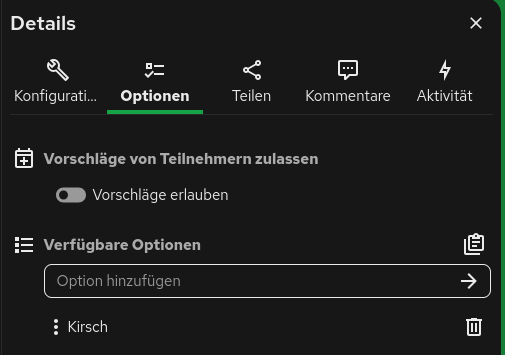
Optional: Allow suggestions from participants by activating “Allow suggestions.” When this option is activated, an option to limit the suggestion period appears.
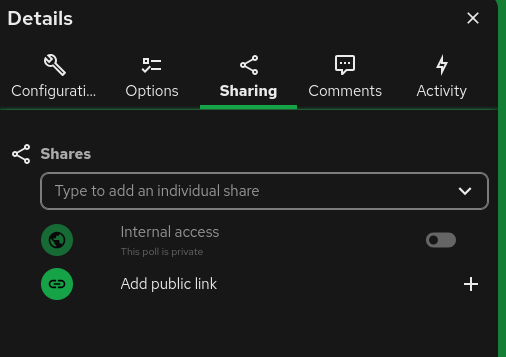
Activate/share survey
Surveys remain inactive unless you share them. There are several options for doing so:
- Share the survey via a link
- Share the survey with individual people/teams within your institution
- Activate internal access. This option makes the survey visible to everyone in your institution. Such polls are listed in the left menu under “Publicly accessible polls.” To share a poll, click Share in the right menu and select the appropriate option.