Forms
Create and manage forms.
Hinweis
Currently, forms can only be shared with users from other universities or guests via a public link.Create a form
- Click on “New form”.
- Enter a title and description for the form.
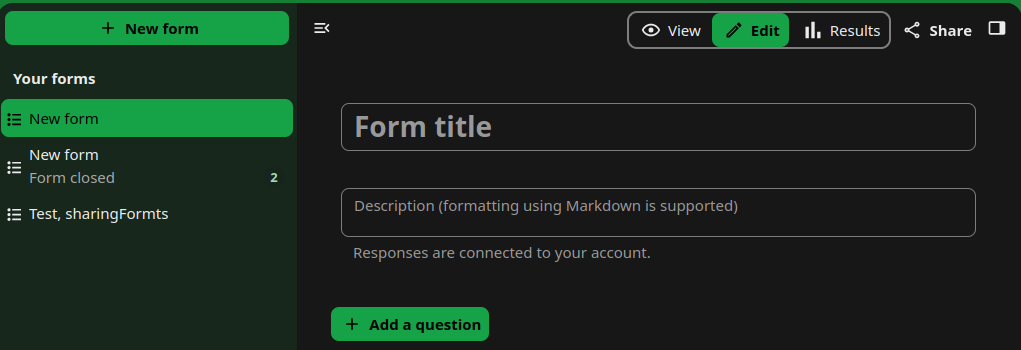
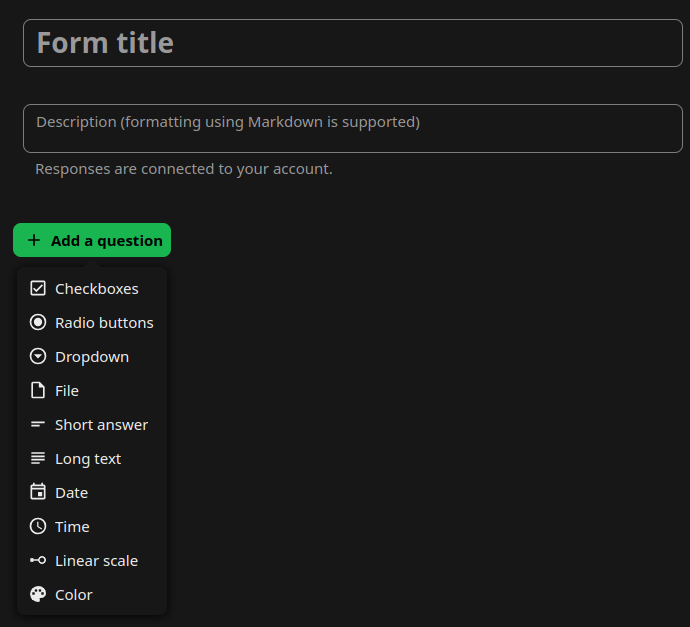
- Click on ‘Add a question’. The following options are available:
- Checkboxes
- Radio buttons
- Dropdown
- File
- Short answer
- Long text
- Date
- Time
- Linear scale
- Color
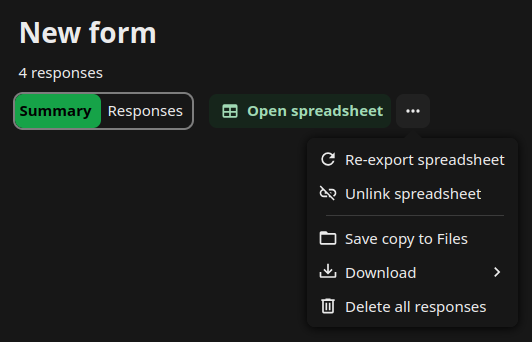
Export/download the results
In order to export the gathered data:
- Go to the form results section.
- Click on ‘Create spreadsheet’ in the opened window and choose the sciebo folder to which the spreadsheet must be saved.
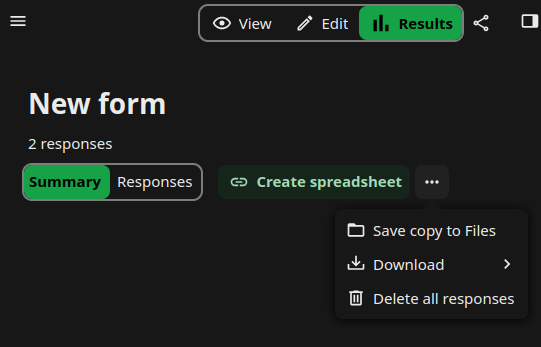
- Click on the XLSX, CSV or ODS buttons to select the file format. This will create a spreadsheet linked to the form. Note: data from forms is not automatically synced with the linked file and needs to be re-exported after new answers are added.
Transfer ownership
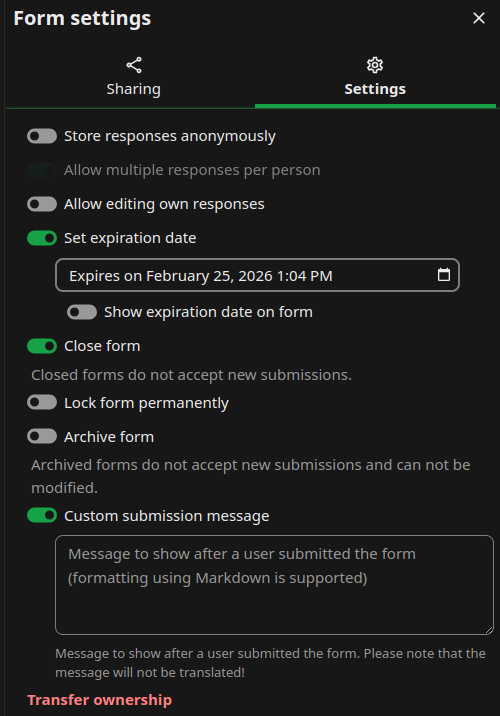
- Click on the share symbol and go to the settings tab.
- Click on ‘Transfer ownership’ at the bottom.
- In the “Select account” field, type in the account of the person to whom you want to transfer the form.
- Enter the requested text in the second field, then click “I understand, transfer this form” to confirm the transfer.
Share form
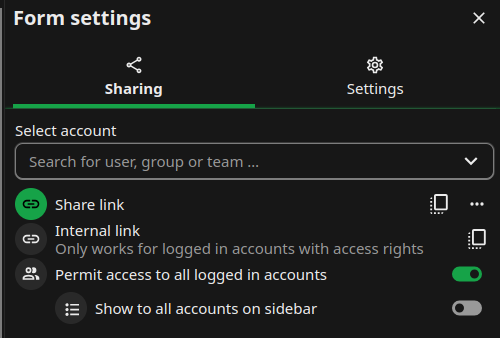
There are several options for sharing forms: Share the form via a public link.
- Share the form with specific people or teams within your institution.
- Permit access to all logged-in accounts. This option makes the form visible to everyone in your institution. You can choose to list such a form in the left menu for all users by enabling the ‘Show to all accounts on sidebar’ option.