This is the multi-page printable view of this section. Click here to print.
Good to know
- 1: How Sciebo Works
- 2: Accessibility
- 3: Client Logs
- 4: Expiration and Deletion Dates
- 5: Permissions
- 6: Who owns the data?
1 - How Sciebo Works
DRAFT!
This document is still under development… subject to change without notice…
How does Sciebo actually work? Where is the data located?
On this page, we’ll explain how Sciebo works to give you some background knowledge. Understanding how the system works will help you avoid potential errors, as user errors can lead to data loss.
Where is the data located?
Physically speaking, the data is mirrored at two locations at the University of Münster. This storage system
is a dedicated server infrastructure with hundreds of individual hard drives on which the data is stored. A
special algorithm distributes the data blocks across different hard drives, so that the failure of individual
drives can be compensated for by the system, preventing data loss. In case of failure, defective drives are
replaced promptly. Another advantage of this data distribution is the very high data throughput, even though
these are still conventional magnetic hard drives. When a file is written, the write operation is distributed
and parallelized across multiple hard drives. Instead of the usual approximately 120 MB/s, we can store data
at a total of several gigabytes per second. With very low latency, this data is then also saved to the storage
system at the second location.
Because this storage system, like the Sciebo servers themselves, is located on university premises, we can
prevent foreign governments and their organizations from unauthorized access to our users’ data. This data
sovereignty is of paramount importance to us!
From a logical perspective, the data initially resides in the individual user accounts. This means that,
according to the current concept, each user has their own data directory. The structure is hierarchical. The
owner of the data is the user in whose respective folder that data is stored. Specifically, this means that
if this user shares a folder with you and you save data there, that data will also end up in the folder that
was shared with you. Sciebo (and therefore also ownCloud/Nextcloud) does not store who stored this data there.
Consequently, this also means that any data recovery requires the (written) consent of the person who shared
that folder with you. Provided this sharing is still active, data recovery to the exact same location is quite
straightforward. However, if the sharing has expired because the person sharing it no longer uses Sciebo, we
cannot avoid certain formalities.
Otherwise, we open the door to potential misuse. On the one hand, we are not allowed to do this, but on the
other hand, the trust of our users in these principles is very important to us.
If you now wish to access the data, there are several ways. You can access the data easily and directly via
the web interface. The various client apps are designed to simplify access to this data. Unlike the mobile
clients, the desktop clients are also able to save a local copy of your data.
This is particularly useful if internet access fails for any reason. However, the VFS option
must be deactivated for this to work. If VFS is active, the client behaves similarly to the mobile version.
Data is only temporarily downloaded when the respective file is accessed. Local, permanent storage of the file
must be explicitly selected by the user.
Comparison with Network Drives
Therefore, Sciebo is not comparable to network drives. With a network drive, there is only one central data
set on the server, which all users access. Therefore, only one person can write to a file at a time. A file
lock is passed through to all other users, so they can only read it.
In contrast, when accessing a network drive with client software, the data is copied to the client temporarily
or permanently (depending on the settings). Thus, each user has their own copy of the file, and everyone can
open this file locally (including write access), since file locks cannot currently be passed through. This can
be particularly problematic when editing Office documents. The last person to write the file wins. If multiple
write operations occur virtually simultaneously, file conflicts arise that must be resolved manually.
And now what?
The file locks created by Office products are essentially nothing more than lock files, which could
theoretically be synchronized down to the local system. We experimented with this a few years ago, but
unfortunately, it proved to be very unreliable. The problem is latency. That is, when the first user opens the
file, the lock file is created. This would then have to be synchronized up to the server and then distributed
to all other clients. This process is unreliable. Some users may have a slow client system or a slow internet
connection. Therefore, the distribution of a lock file can take a few seconds, but it can also take considerably
longer. A feature that is so unreliable isn’t a feature at all; it gives users a false sense of security.
Therefore, the only viable alternative at present is to move collaborative document editing to the web.
We host a suitable office suite for this purpose. The data is accessed centrally there, thus avoiding conflicts
as much as possible.
Why not Samba?
In theory, the data could also be made available as a Samba share. Unfortunately, this doesn’t work smoothly with Sciebo and the other related cloud systems. The main reason for this is the metadata database that manages the data in Sciebo. When data is edited via a client or the web interface, these changes (file path, owner, timestamp, checksum, etc.) are stored in a database. A Samba server cannot communicate with this database. This means that Sciebo wouldn’t be notified of changes, and the checksums and other entries for the respective file would be corrupted. Background jobs that could track such changes and update the database in a timely manner require an extremely high number of resources. The system would be severely slowed down and would also become very unreliable.
But there’s WebDAV, right?!
Yes, that’s true. It’s a protocol that Sciebo supports in principle. However, it’s not trivial to use. The
probability of data loss is relatively high if you don’t know exactly what you’re doing. We therefore advise our
users against using this interface, and we don’t offer official support for it.
Those who know exactly what they’re doing can access Sciebo via WebDAV using tools like rclone. But we don’t
like this, as it can tie up a lot of system resources. That’s simply unfair to all other users. If, for example,
we see that such access is putting too much strain on the servers, we are forced to deactivate the account of
the user in question.
2 - Accessibility
Migrating to Nextcloud has made it possible to make sciebo a little more accessible, as Nextcloud Office allows documents to be read aloud. We have activated this option on the server side. However, for it to work properly, it must also be enabled on the client side. To do this, follow these instructions:
- Open sciebo in a web browser.
- Open a document that you want to have read aloud.
- Navigate to the Help tab by pressing the key combination “ALT+Y” in the open document. Alternatively, press the ‘ALT’ key and navigate by pressing the tab key until you hear “Tab Control Help Tab selected”.
- Then press the down arrow key. You should hear “Tool Bar four toggle buttons not pressed.”
- Press the TAB key until you hear “Screen Reading Button not pressed” and activate it by pressing the space bar. After this action, the content of the document should become accessible to your pre-installed screen reader.
Hinweis
These settings have been tested for web interfaces on Windows and Linux.3 - Client Logs
Client Logs
When the client throws errors, it is often helpful to send logs to support, which may provide more insight into what exactly went wrong.
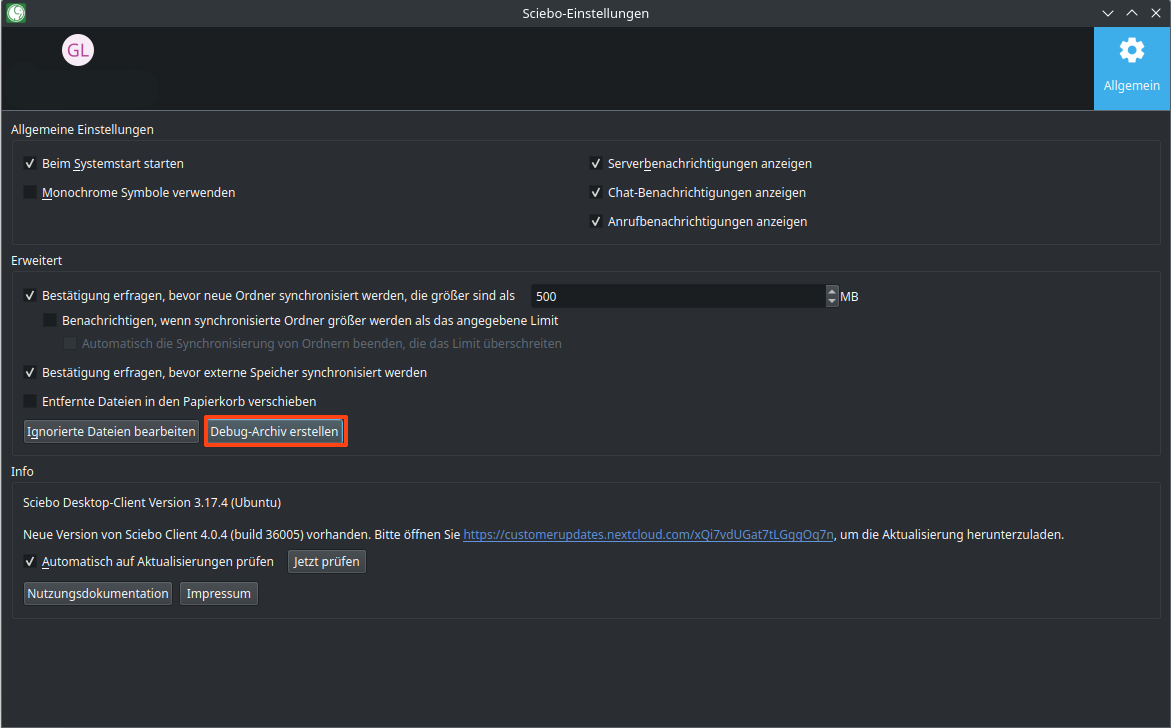
Debug logging is enabled by default, with an expiration time of 24 hours. To create a debug archive, go to the client settings and click ‘Create debug archive…’.
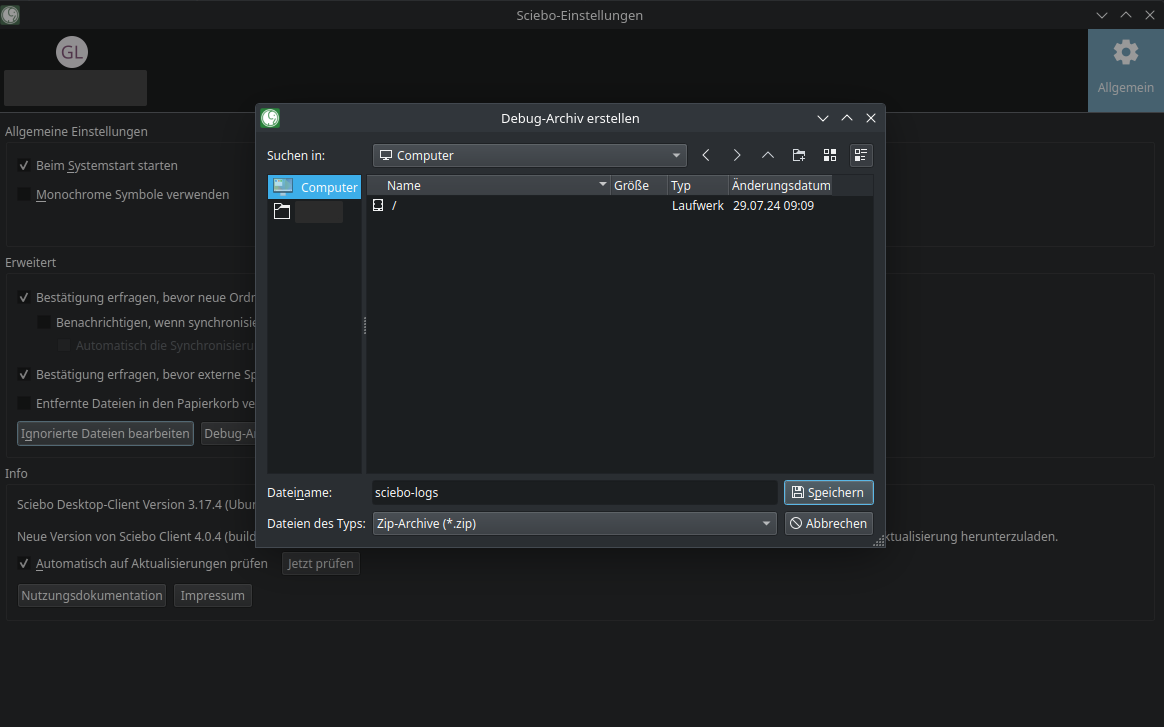
You will be asked to select the location where the desktop client will export the logs and database as a zip file. Enter an archive name to activate the Save button.
4 - Expiration and Deletion Dates
| Action | Acoount-Type | Date |
|---|---|---|
| account block | regular | last login date + 12 months |
| account deletion | regular | date of account block + 6 months |
| account block | guest | last login date + 12 months |
| account deletion | guest | date of account block + 30 days |
| account block | project box | last login date + 24 months |
| account deletion | project box | date of account block + 6 months |
5 - Permissions
We have not yet translated this page. For the german page, click here
6 - Who owns the data?
Generally we differentiate between two types of accounts:
- personal accounts
- project boxes
Personal Accounts
The situation for personal accounts is obvious: The data is owned by the person that owns the account.
When a person shares a file with you from their personal account, you will have access to this file temporarily, but you do not own it. If the person stops sharing their file with you or their account is deleted, access to the data is lost.
In this case we cannot recover your access to the file.
Project Boxes
In project boxes the institution or the registered project owns the data. If the person who created the project box stops working for the project or institution, their collegues can talk to the support and take over the project box.
Handling of business documents
Regulation of the handling of business documents is governend by the participating institutes. There can be made no distinction between the personal space in sciebo and private storage devices. For files which are not allowed to be saved on private devices, but should be accessible in sciebo, project boxes can be used. A good description and attribution to the working group in the project box appliction can here help ease the support of certain issues in the future, e.g. when people leave the institute.